GPS Fleet Dashboard, Better Maps and Bulk SIM Renewals
A monitoring team needs more than dots on a map. It needs to identify vehicles requiring attention, compare groups, review today's activity and keep tracking services active. This Net Domain Technologies update introduces a configurable GPS fleet dashboard alongside improvements to maps, reports, alerts, subscriptions and SIM line renewals that connect those daily tasks.
Net Domain Technologies tracks vehicles and other assets using GPS trackers or phones, lets users review routes and helps analyse the information devices report. These improvements support both businesses managing their own fleets and resellers managing devices for multiple customers. This article explains what you can do, where to find the options and which conditions apply.
A new GPS fleet dashboard for operational oversight
The Dashboard is introduced in beta as a collection of indicators and lists updated with your devices' information. Instead of opening several vehicles to understand the overall situation, you can bring a map, moving vehicles, pending alerts, daily activity and maintenance information together on one screen.
For operational accounts, access requires more than 10 devices visible to the user and permission to open the Dashboard. It does not grant access to additional equipment: each user retains the device scope of their account or profile. Single-device logins do not include this section.
The demo includes example dashboards you can explore: change the view, filter a group and open a device from an indicator. It does not allow editing block layouts or saving custom dashboards to the demo account.
Visual example with simulated data: the Dashboard screenshots and video in this section use 24 fictional vehicles, three groups and illustrative situations to explain its indicators. They do not represent customer data or measured results from a real fleet.
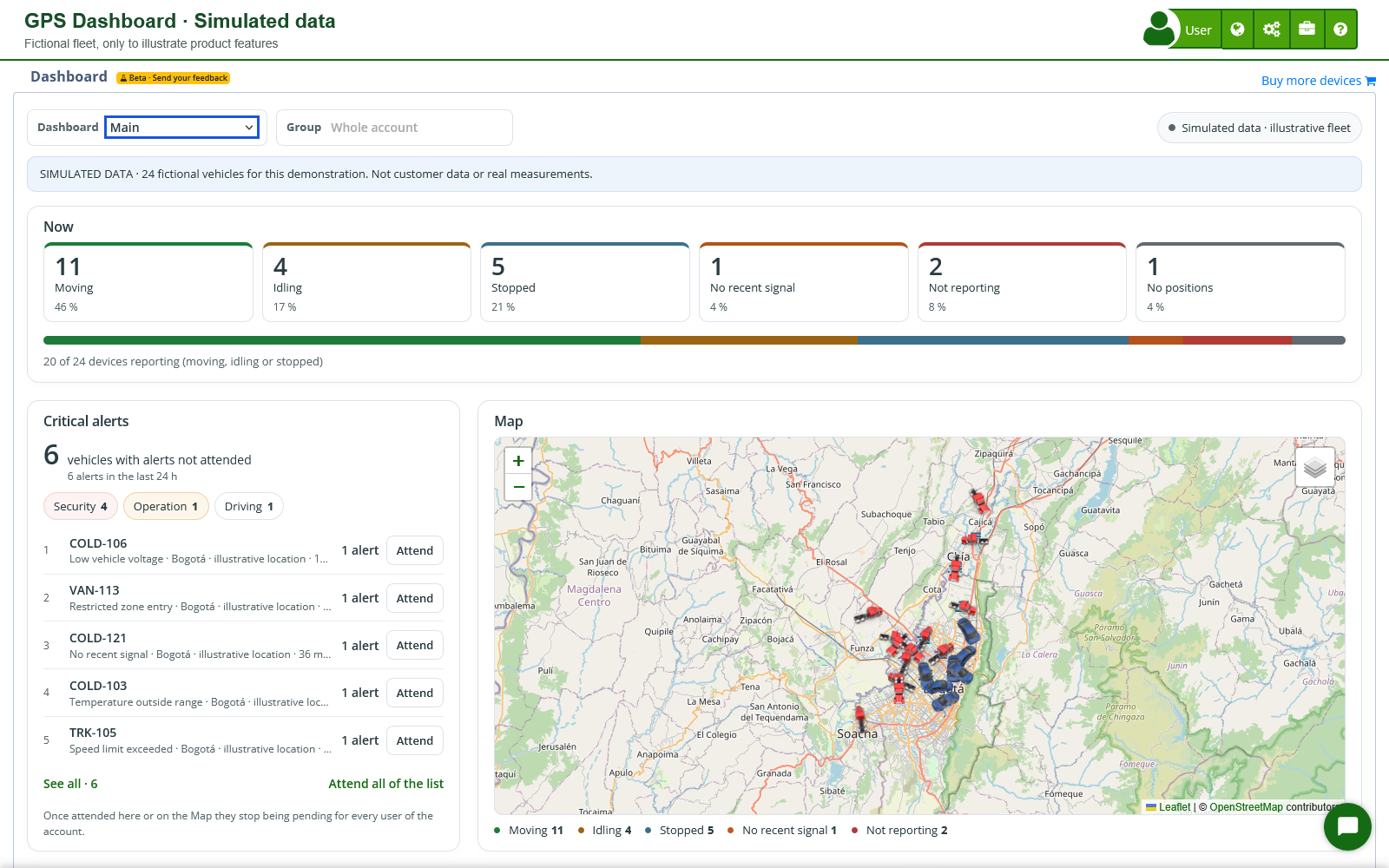
Build separate views for operations, driving and maintenance
Use Add block to choose the information you want. You can create multiple dashboards, rename them and use Arrange to move blocks and adjust their width or height. You can also duplicate a block with different settings, undo adjustments or cancel an arrangement before saving.
The Group filter focuses a dashboard on part of your operation. Each block can also have its own group: compare two branches on the same screen, for example, or keep a priority group visible while changing the overall filter. This keeps results from vehicles with different responsibilities from being mixed together.
For accounts that save their settings, the pin selects the Dashboard as the start page. Browser and mobile app start pages are chosen separately. Shared-access users retain their adjustments in that browser and cannot change the account's start page.
A catalogue of 38 block types for practical decisions
Blocks display current information, daily totals or activity since the dashboard was opened. Select those that support your operation rather than filling the screen with indicators your equipment cannot report.
| Capability | What you can review and why it matters |
|---|---|
| Fleet status and location | Now, Fleet status, Map, No recent signal and Devices not reporting distinguish movement, idling, stops and missing updates. The map block initially uses OpenStreetMap and can focus on vehicles with issues. |
| Movement and speed | The Devices moving, Devices idling, Devices stopped and Speed blocks show what is happening now. Average speed, Top speed, Speeding, Idling of the day and Aggressive driving support reviews of vehicle use and driving behaviour. |
| Daily activity | Distance of the day, Moving time of the day, Stopped time of the day, Engine hours and Daily use help compare vehicles. Fuel used and Fuel efficiency add context where the devices provide the required data. |
| Session activity | Trips, Stops, Longest stop and Ignitions follow activity since the dashboard was opened. They help monitor an ongoing shift without mistaking that observation for a complete historical query. |
| Alerts and priorities | Critical alerts, Alerts, Alerts by type and Where the problems are bring together events and their locations to prioritise vehicle review. Separate blocks can follow different alert types. |
| Sensors | Fuel, Temperature, Vehicle battery, Ignition (input 1), Input 2 time and Digital inputs cover levels, voltage, ranges and states, only where a correctly configured tracker reports them. |
| Maintenance and service | Upcoming or overdue reminders brings together date- and mileage-based notices. Expired devices distinguishes license expiry from a configured service expiry date; Your customers groups operational issues by device group. |
For example, an operations manager can combine Fleet status, Map, Critical alerts and Distance of the day to review a shift. A maintenance manager can build another view with reminders, battery voltage, fuel and temperature. Both work with the devices they are authorised to see, while putting the information relevant to their role first.
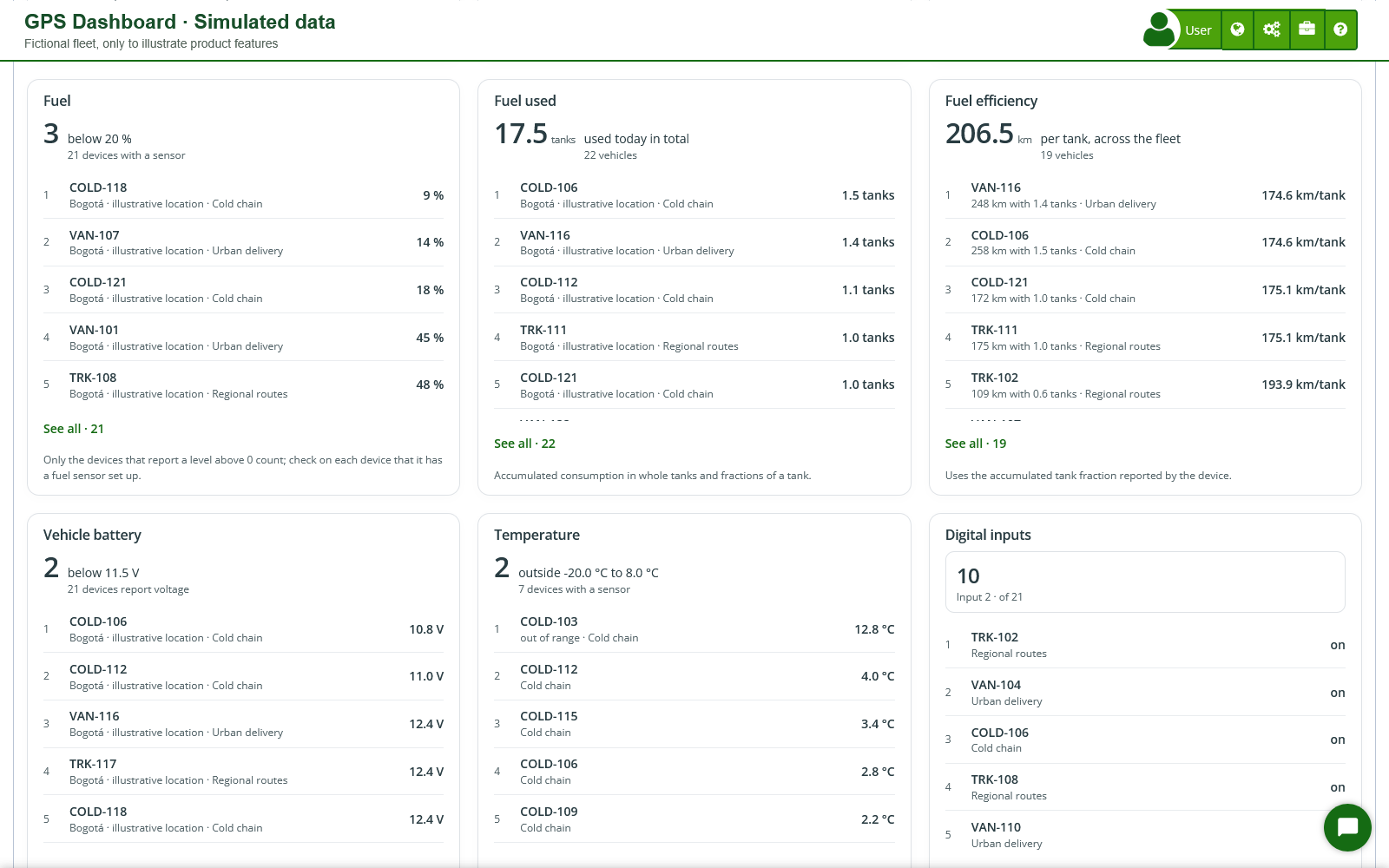
Go from an indicator to the vehicle and alert action
Indicators open lists showing which devices explain a result. See all expands the list, and a device opens the same detail window used by the Map. See on the Map then takes you to its location without having to find that vehicle again.
The Critical alerts block shows pending alerts from the last 24 hours that were configured to be highlighted as critical. You can acknowledge an individual alert or confirm acknowledgement of those in the list. Once acknowledged, they stop being pending for all users of the account, so this action should follow your monitoring team's procedures.
Read each indicator with its time window, units and sensors in mind
Daily values use the account's date and time zone. Other blocks, including trips, stops, ignitions, maximum speed and certain alerts, observe activity since the dashboard was opened. For Aggressive driving, compatible devices provide daily counters; where they do not, available information comes from alerts received during the session.
Distance, speed and temperature respect configured units, including kilometres or miles and Celsius or Fahrenheit. Accumulated consumption expressed in tanks means full tanks and fractions of a tank; it is not labelled as litres or gallons without a supported volume measurement. A missing sensor is not treated as a zero reading.
Block limits organise and highlight that view. They do not by themselves create a device alert or send messages: notifications require the device's alerts and channels to be configured. Likewise, Your customers uses device groups to show operational issues; it does not replace the commercial customer records in My customers.
Smoother GPS maps and better tracking continuity
Map loading and drawing have been improved to reduce freezing when handling many markers or critical alerts. Live connection recovery has also been adjusted so a prolonged interruption does not cause increasingly long waits before another connection attempt. This helps monitoring resume when connectivity returns, without promising positions the tracker has not yet sent.
Opening the Map again retrieves pending critical alerts from the relevant period. Recovery of a device's last position after it stops reporting has also been corrected. That position helps investigate where its latest data arrived, but it does not confirm that the vehicle is still there in real time.
Map-type preferences are stored separately for the browser and mobile app. If an alternative layer is used on opening because the saved one is unavailable, opening it does not itself overwrite your choice. Embedded group maps and their markers also receive loading fixes.
Timeline details with better fuel and temperature interpretation
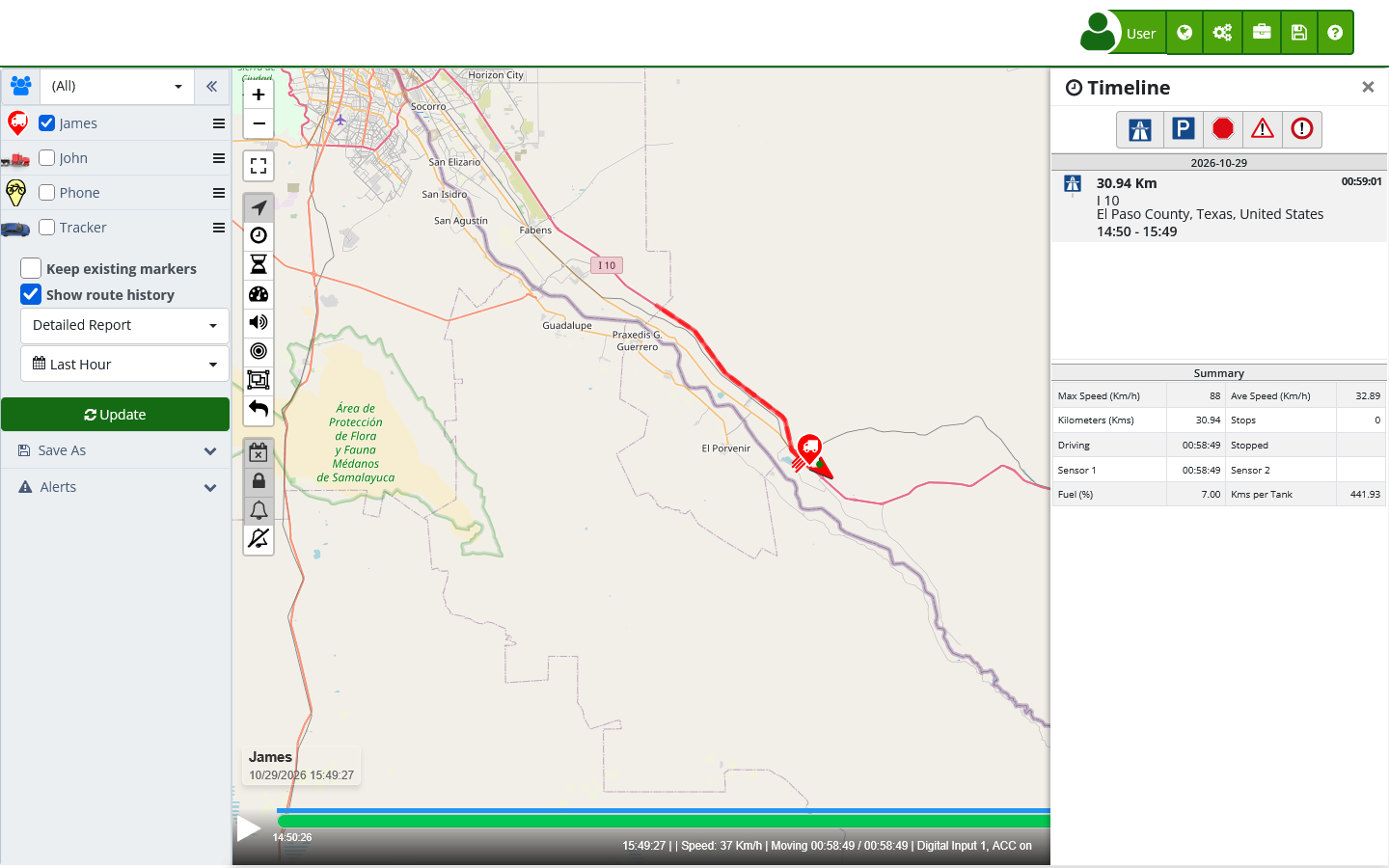
In route history, the Timeline lets you review activity and open its details. Fuel consumption calculations now correctly use tank fractions, including a second tank when present. Where tank capacity is configured, the calculation uses it to determine the corresponding quantity.
Temperature readings of 0 °C are retained when calculating minimums and maximums instead of being treated as missing information. Initial stop, movement and idling counters and average sample speed have also been corrected. For cold-chain operations or vehicles with multiple tanks, this helps you review a journey using the units and measurements actually received.
More precise reports, statistics and alert configuration
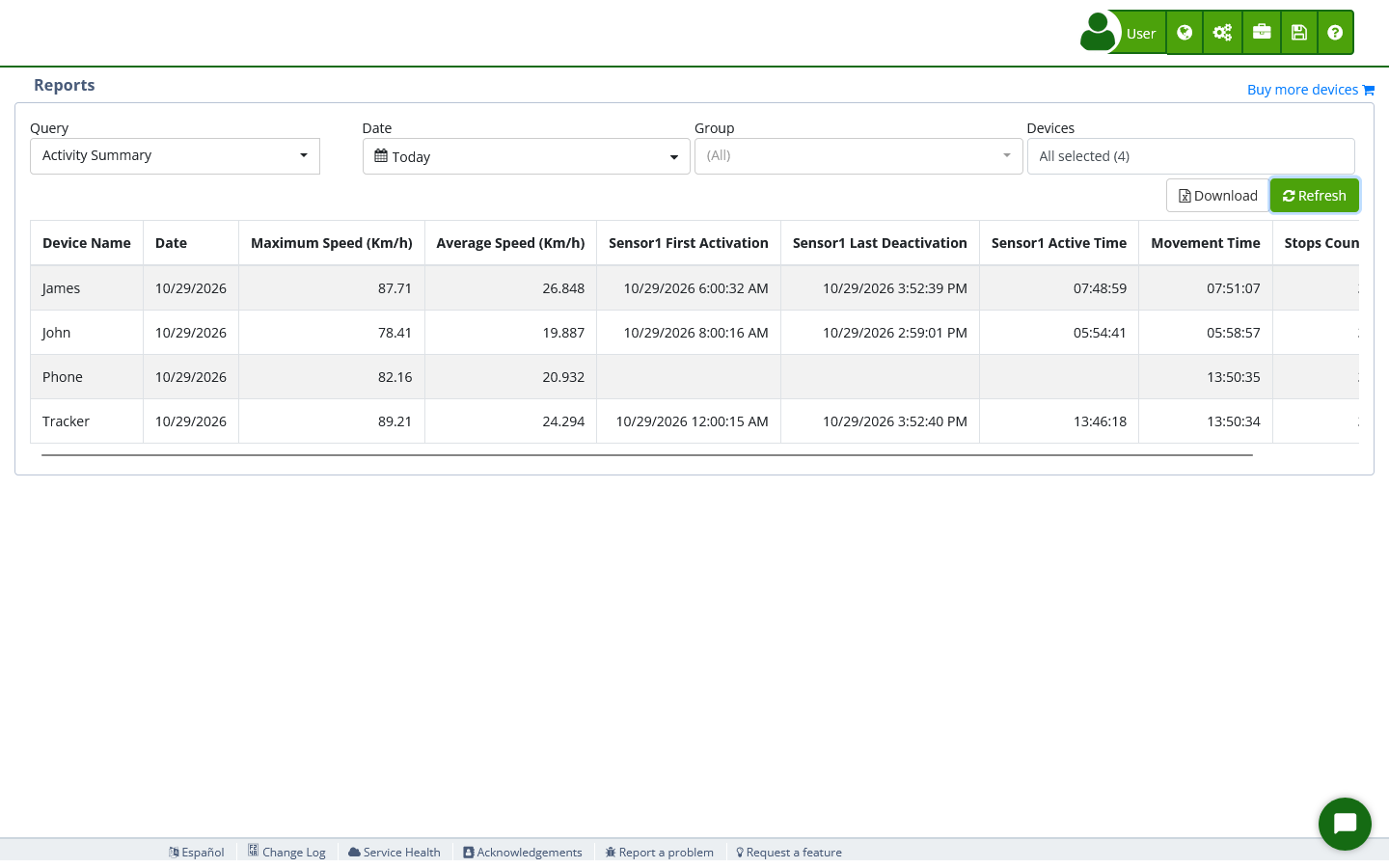
In Reports, Excel export uses the full query with the selected period, devices and filters, regardless of the page or loading point currently shown on screen. You can prepare an activity analysis without accidentally exporting only part of the query.
When customising a report, variable search treats names with parentheses or other characters literally. You can search by a complete variable name and its unit. Report column settings are also kept separate so one report's configuration does not interfere with another.
Statistics corrects mileage conversion to miles and the calculation of harsh braking and acceleration for the queried period. If dates are entered in reverse order, both ends of the interval are used correctly. These corrections help compare journeys and driving behaviour using the selected period and units.
Low battery alert editing allows you to enter the percentage. In bulk editing, Replace removes the selected devices' existing alerts and applies the new configuration; Add preserves the earlier alerts. Review the devices and rules before replacing them. The bulk alert editing guide explains the difference.
Renew several Claro SIM lines with one payment
The Lines section, available from Settings for accounts with associated lines, introduces selection of several lines to renew together. Review the number, description, device, expiry and remaining days, remove lines you do not want to renew, and complete one payment for the selection, with up to 100 lines per operation.
The choices distinguish Renew Data Only from complete plans including one year of a Standard or Professional license. SIM connectivity and the tracking license are different services: data-only renewal does not include a new Net Domain Technologies license. Purchase cards explain each option and update the total for the selected lines.
For example, a business with several SIMs approaching expiry can prepare their renewal in one review and one payment instead of repeating the process for every vehicle. Selection remains limited to lines shown in the account and eligible for renewal through this channel under the operator's conditions.
Keep each line's dates or activate the licenses now
When you purchase a complete plan, the associated Net Domain Technologies licenses are scheduled according to each line's expiry. You can pay together even when the lines have different dates without automatically starting every license on the purchase date. Licenses for already-expired eligible lines start from the current time.
Activate the Net Domain Technologies licenses now lets you choose immediate activation when you need that capacity today. Review the choice before paying: immediate activation and scheduled activation at expiry are different options. The receipt shows the activation and expiry dates of the included licenses.
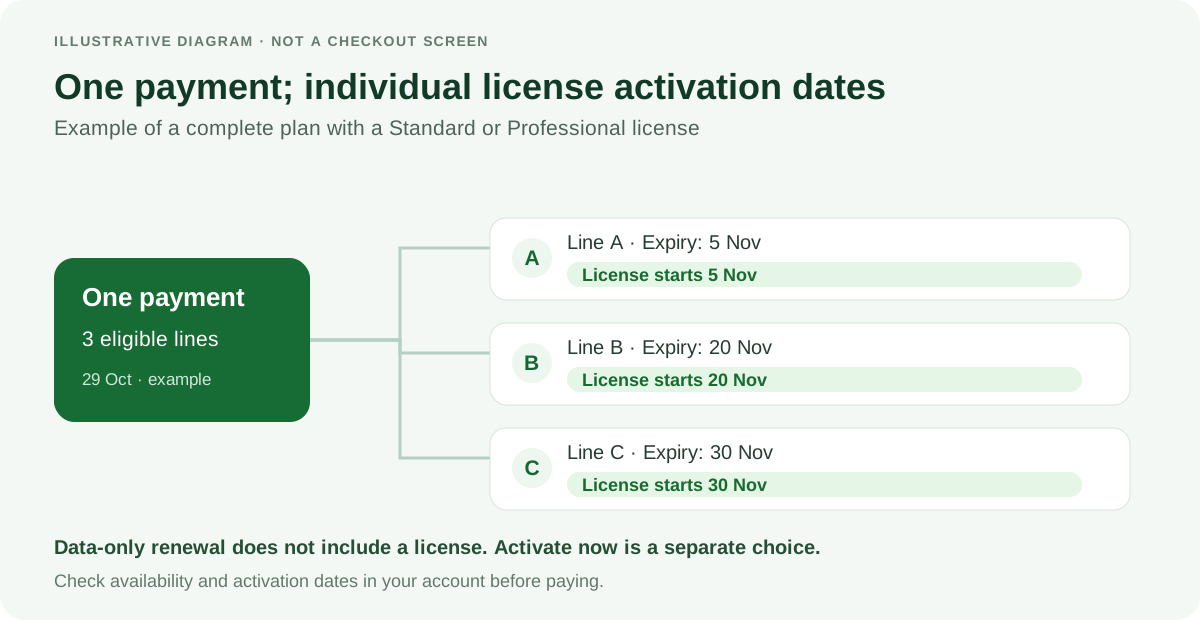
The list distinguishes active, expiring and expired lines and adapts better to phones. When lines are approaching expiry or have recently expired, a notice appears at the top of other pages. Open renewal from that notice or postpone it; a new expiry or greater urgency can make it appear again sooner.
An expired line cannot always be renewed online. Where the operator does not allow it, the screen explains the limitation and provides the corresponding support options. See the line management and renewal guide and check the availability shown for your account.
Adjust your subscription without creating another one
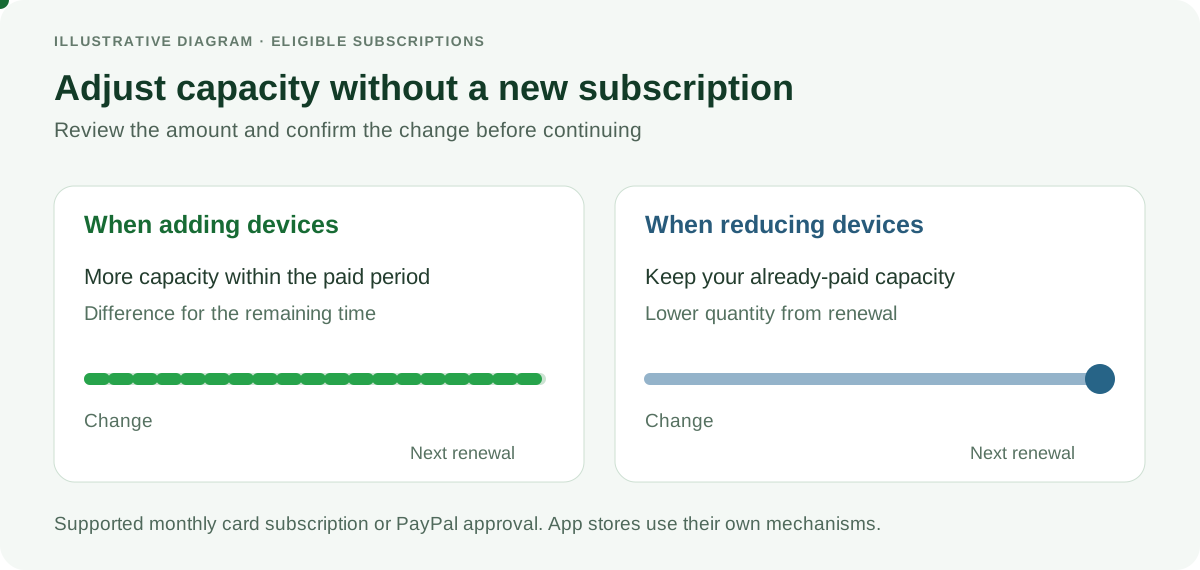
Under My account > Active subscriptions, eligible subscriptions show an edit button with a pencil icon that opens Change devices to adjust the device quantity while keeping the existing subscription. The page compares current and new quantities and amounts, shows the next payment date and lets you check whether anything needs to be paid now.
Adding devices calculates the amount for the remainder of the already-paid period. Reducing the quantity keeps your paid capacity through the next renewal, with the new amount applying from that charge. Calculation uses your subscription's pricing conditions rather than forcing you to create a new subscription to expand your fleet.
This applies to eligible, current Standard or Professional recurring tracking subscriptions: supported monthly subscriptions for card payments, and subscriptions requiring the holder's approval in PayPal. Purchases managed by Google Play or the App Store retain their own mechanisms and should not be confused with this option.
If a difference is payable, the screen details the amount and related pending receipts. With a card, you can choose a supported saved payment method; with PayPal, the interface distinguishes paying the difference from approving the subscription change. A rejected card charge is not presented as a completed capacity increase.
Retry a renewal after confirming its amount
When an eligible renewal did not complete, Retry payment lets you review the amount and confirm another attempt without deleting and recreating the subscription. Choose a supported card or follow the PayPal flow where available. Merely opening the review page does not itself confirm a charge.
Additional fixes cover one-time payments with a saved card, foreign identification containing letters or hyphens in ePayco payments, and recognition of Google Play purchases when the subscription has already been registered. For foreign documents, the actual billing information is retained for invoicing. Result pages distinguish approval, pending processing and rejection so you can check the outcome before attempting another transaction.
Clearer receipts and license transfers
The receipt brings together the complete payment, its items, taxes and total. Where a purchase includes licenses starting on different dates, it shows their schedule and associated receipts. Those receipts are identified as included in the original payment so they are not mistaken for separate new purchases. Invoicing is also adjusted so the total and VAT match the amount actually charged.
On an eligible receipt, Transfer prepares the transfer of a paid, unexpired Standard or Professional tracking license. A confirmation with the corresponding details appears before the code is generated and emailed to the receipt owner. If an associated active recurring subscription prevents transfer, the screen explains that condition.
This supports account reorganisation without confusing the person viewing a receipt with its owner. Transfer does not apply to every balance or product and should not be understood as an automatic recurring-subscription transfer.
Groups API: restore organisation in your GPS integrations
A fault that could return HTTP 500 and prevent Groups API operations from being handled has been corrected. Groups organise devices by customer, branch or activity; an integration can read that structure and keep it aligned with a business system without repeating every adjustment manually in Net Domain Technologies.
The fix restores processing of existing operations, such as listing, creating and updating groups; it does not introduce new permissions or change their routes. If your integration received that error when listing groups, check GET /api/groups again once the update is available. Access still requires valid authentication and an administrator user with permission to manage groups.
My customers becomes available more widely
My customers is no longer limited to a previously enabled group of accounts and is shown to accounts meeting its access requirements. A preview can appear from 50 licensed devices, combining Standard and Professional licenses; saving and operating still requires 100 or more. Subusers remain subject to their groups and privileges, and the free version is not included.
The section manages customers, plans, payments and expiry dates for the service you sell. Preview mode helps you explore that workflow before adopting it; it does not save records or confirm payments. See the My customers guide for its commercial features.
Other everyday usability improvements
In sections with the AI assistant, stopping a response is treated as intentional cancellation rather than failure. Incomplete technical citation markers are kept out of the displayed answer while available source links are retained. File downloads correctly support names containing commas and accented characters, preventing the Chrome error those names could cause.
Device and User windows strengthen confirmation before deletion. Critical-alert actions respect the devices visible to each user, and signing out remains possible when a subscription has expired. These changes help teams using shared monitoring workstations or switching accounts.
When contacting Net Domain Technologies through WhatsApp, commercial assistance includes the initial data-processing notice and the Yo me comunico option, meaning you prefer to resume contact yourself. Out-of-hours callback choices let you select an upcoming morning or afternoon of service. These preferences concern commercial contact with Net Domain Technologies, not your GPS alert settings.
Public technical summary for operations and engineering
- Indicator periods: distinguish current readings, daily totals and events since dashboard opening. Use Reports, Statistics and route history to reconstruct earlier periods.
- Sensors and units: fuel, temperature, voltage and inputs depend on device reporting. Changing units preserves the meaning of configured limits; a tank fraction is not turned into a volume without a known capacity.
- Permissions: the Dashboard does not expand device visibility. Acknowledging a critical alert updates its pending status for the account's users.
- Services: distinguish the SIM, Net Domain Technologies license, recurring subscription and My customers service date. A line reference in My customers does not renew its data plan in Lines.
- Payments and activation: check amounts, confirmation and dates before completing changes. A payment under review or a pending PayPal approval is not a completed operation.
Build the working view your fleet needs
Once the update is available in your account, start with a dashboard containing the indicators you use for daily decisions and focus on a specific vehicle group. Review Lines notices and My account options to maintain the connectivity and capacity you need. Net Domain Technologies documentation complements this workflow with device, alert, report and service configuration.